How to secure Active Directory with LDAPS (Windows Server 2025)
Before you start
Read Understanding LDAP: Active Directory vs OpenLDAP if terms like bind, DN or LDAP vs LDAPS are new to you.
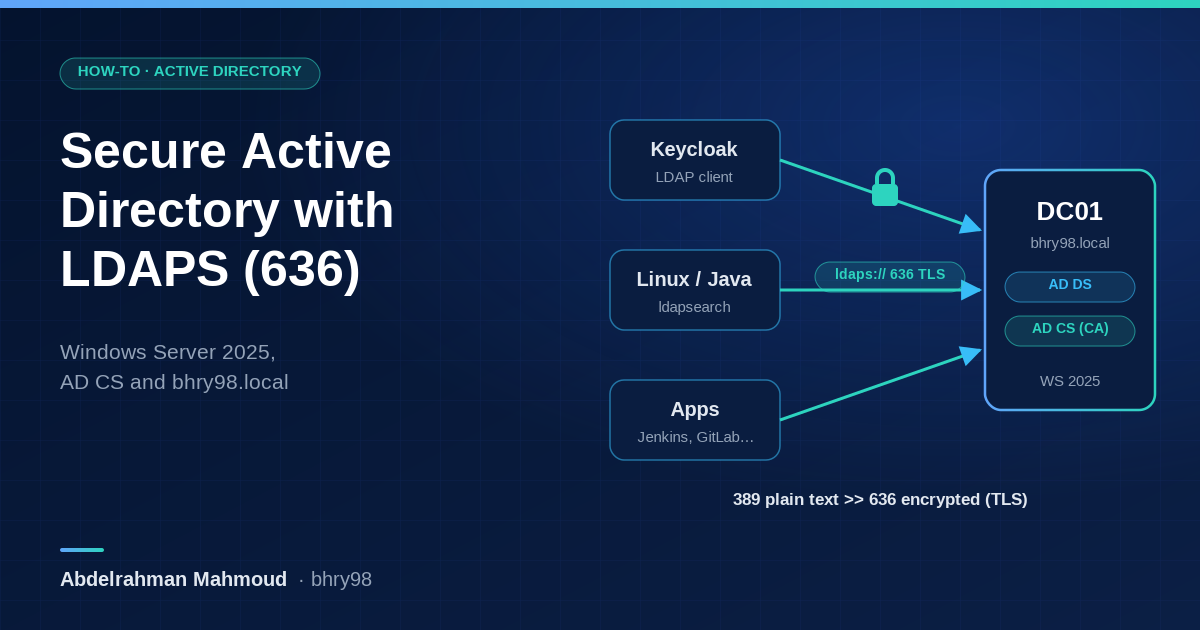
By default, applications talk to Active Directory over LDAP on port 389, and a simple bind sends the username and password in plain text across the network. LDAPS wraps the same protocol in TLS on port 636, exactly like HTTPS does for HTTP.
Domain controllers turn on LDAPS automatically as soon as they have a suitable certificate. So the job is really: give every DC a trusted certificate and keep it renewed. The cleanest way is an Enterprise CA with Active Directory Certificate Services (AD CS) and auto-enrollment.
By the end of this guide you will have:
- An Enterprise Root CA for
bhry98.local - Every domain controller auto-enrolled with a server certificate that renews itself
- LDAPS working on
ldaps://dc01.bhry98.local:636(and the Global Catalog on 3269) - Linux, Java and Keycloak clients trusting your CA
Lab used in this guide
| Host | IP | OS | Role |
|---|---|---|---|
DC01.bhry98.local |
10.0.0.10 |
Windows Server 2025 | Domain controller (AD DS + DNS) for bhry98.local |
CA01.bhry98.local |
10.0.0.20 |
Windows Server 2025 | Domain member, will become the Enterprise CA |
client |
any | Windows 11 / Linux | Testing |
About the screenshots
The pictures in this guide are illustrations of the Windows Server 2025 dialogs, drawn with
the exact values of this lab (bhry98.local, CA01, DC01), so you can compare them with your
own screen field by field.
Small lab with only one server?
Microsoft recommends not installing AD CS on a domain controller. In a throw-away lab it
works if you run every CA step on DC01, but use a separate server anywhere else.
Prerequisites
| Requirement | Notes |
|---|---|
A working AD domain bhry98.local |
DC01 promoted, DNS working |
| A second server joined to the domain | CA01, for AD CS |
| An account in Enterprise Admins and Domain Admins | Needed to install an Enterprise CA |
| Time in sync | Kerberos and certificates both fail with clock skew |
Check from DC01 that the domain is healthy before you start:
Step 1: Install the AD CS role on CA01
Sign in to CA01 as BHRY98\Administrator (an Enterprise Admin).
- Server Manager → Manage → Add Roles and Features.
- Installation Type: Role-based or feature-based installation.
- Server Selection:
CA01.bhry98.local. - Server Roles: check Active Directory Certificate Services, accept Add Features.
- Role Services: keep only Certification Authority.
- Install, then close the wizard when it finishes.
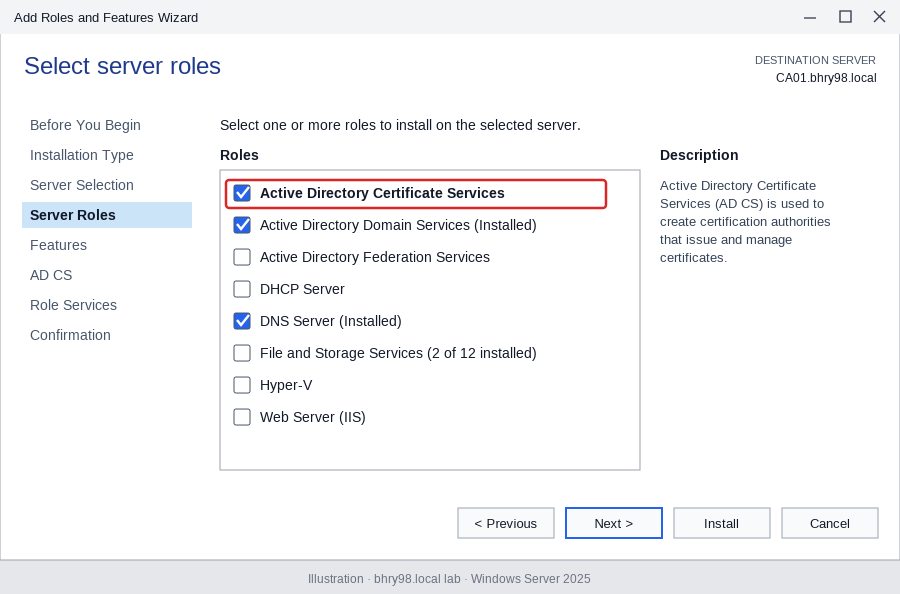
Server Roles: select Active Directory Certificate Services.
Step 2: Configure an Enterprise Root CA
An Enterprise CA is integrated with AD: it publishes its certificate to every domain member, uses certificate templates, and supports auto-enrollment. That is what makes LDAPS automatic.
- Click the flag notification in Server Manager → Configure Active Directory Certificate Services on the destination server.
- Credentials:
BHRY98\Administrator→ Next. - Role Services: check Certification Authority.
-
Setup Type: Enterprise CA.
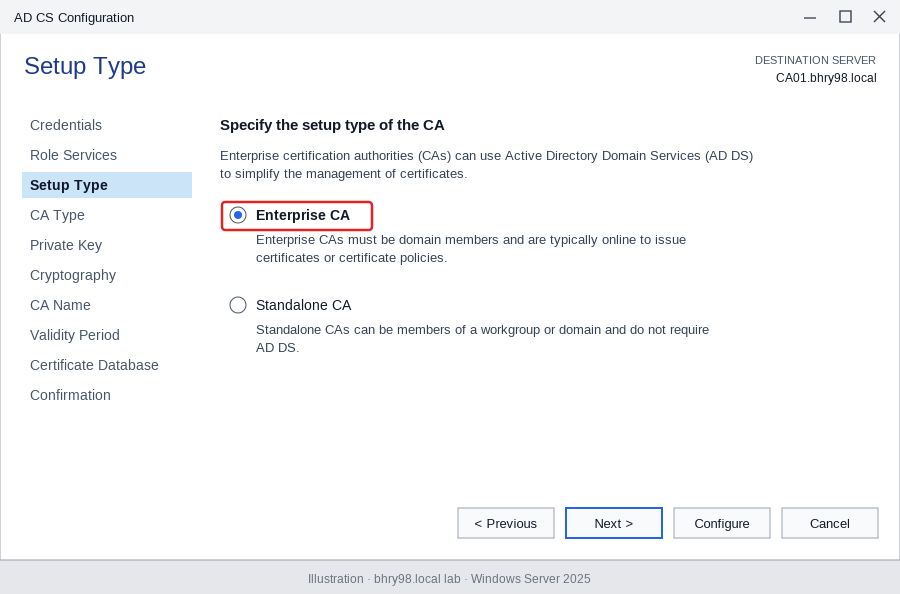
Setup Type: Enterprise CA.
-
CA Type: Root CA.
- Private Key: Create a new private key.
- Cryptography:
RSA#Microsoft Software Key Storage Provider, key length 4096, hash SHA256. -
CA Name: keep the default
bhry98-CA01-CA. The suffix isDC=bhry98,DC=local.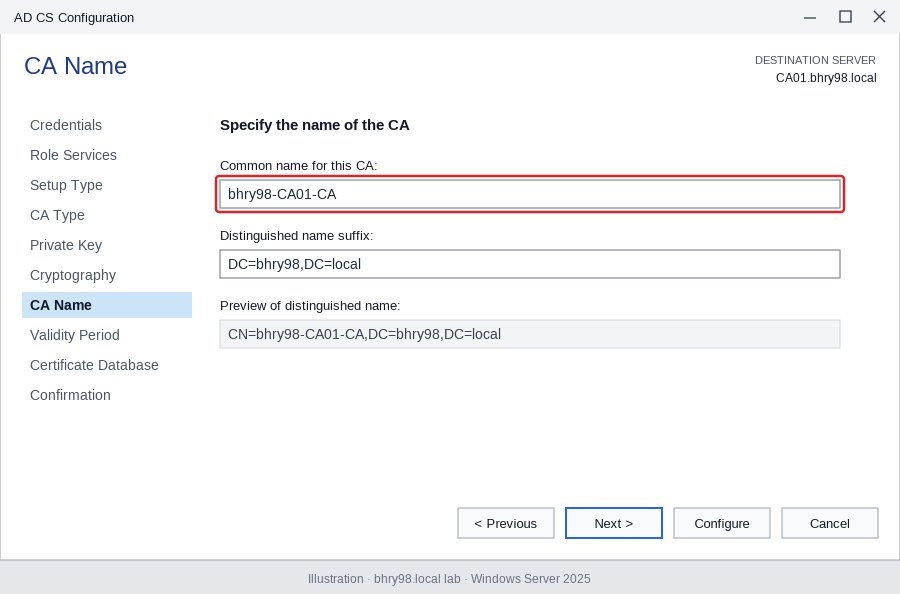
CA Name: the common name your clients will see as the issuer.
-
Validity Period: 10 years (a root CA should outlive the certificates it issues).
- Certificate Database: keep the defaults → Configure.
Check that the CA is running and which templates it publishes:
DomainController: Domain Controller -- Auto-Enroll
KerberosAuthentication: Kerberos Authentication -- Auto-Enroll
DomainControllerAuthentication: Domain Controller Authentication -- Auto-Enroll
WebServer: Web Server -- Access is denied
...
The Kerberos Authentication and Domain Controller templates are published by default and allow the Domain Controllers group to auto-enroll. Both include the Server Authentication purpose and the DC's DNS name, which is exactly what LDAPS needs.
Production PKI
For production, Microsoft's recommended design is an offline standalone root CA plus an online enterprise subordinate CA. The DC side of this guide (Steps 3 to 6) is identical; only the CA setup differs.
Step 3: Turn on certificate auto-enrollment for domain controllers
Auto-enrollment makes DCs request and renew their certificates on their own. You only configure it once.
- On DC01, open Group Policy Management (
gpmc.msc). - Forest → Domains →
bhry98.local→ Group Policy Objects → right-click Default Domain Controllers Policy → Edit. - Go to Computer Configuration → Policies → Windows Settings → Security Settings → Public Key Policies.
- Open Certificate Services Client - Auto-Enrollment:
- Configuration Model:
Enabled - Check Renew expired certificates, update pending certificates, and remove revoked certificates
- Check Update certificates that use certificate templates
- Configuration Model:
- OK.
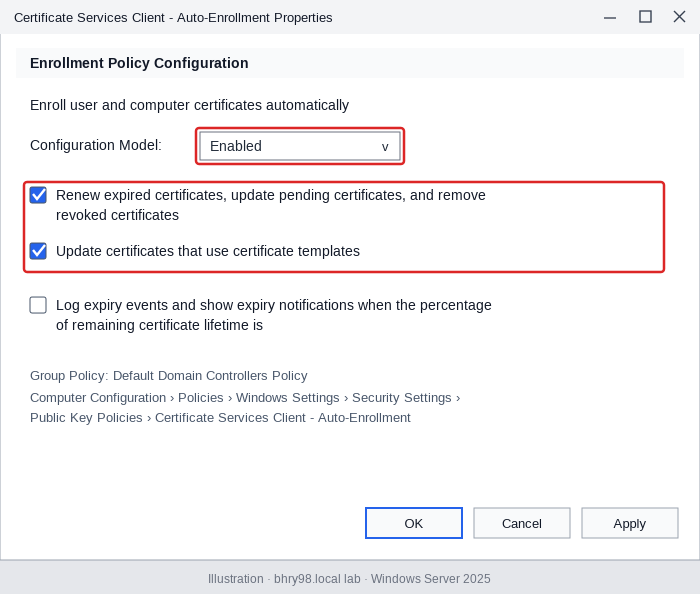
Auto-Enrollment in the Default Domain Controllers Policy.
Step 4: Enroll the domain controller certificate
On DC01 (and later every other DC), apply the policy and trigger enrollment now instead of waiting up to 8 hours:
Check the computer's personal certificate store:
Get-ChildItem Cert:\LocalMachine\My |
  Where-Object { $_.EnhancedKeyUsageList.FriendlyName -contains "Server Authentication" } |
  Format-List Subject, DnsNameList, Issuer, NotAfter, Thumbprint
Subject     :
DnsNameList : {DC01.bhry98.local, bhry98.local, BHRY98}
Issuer      : CN=bhry98-CA01-CA, DC=bhry98, DC=local
NotAfter    : 11/22/2027 10:15:42 AM
Thumbprint  : 4F2A...
Or graphically with certlm.msc → Personal → Certificates:
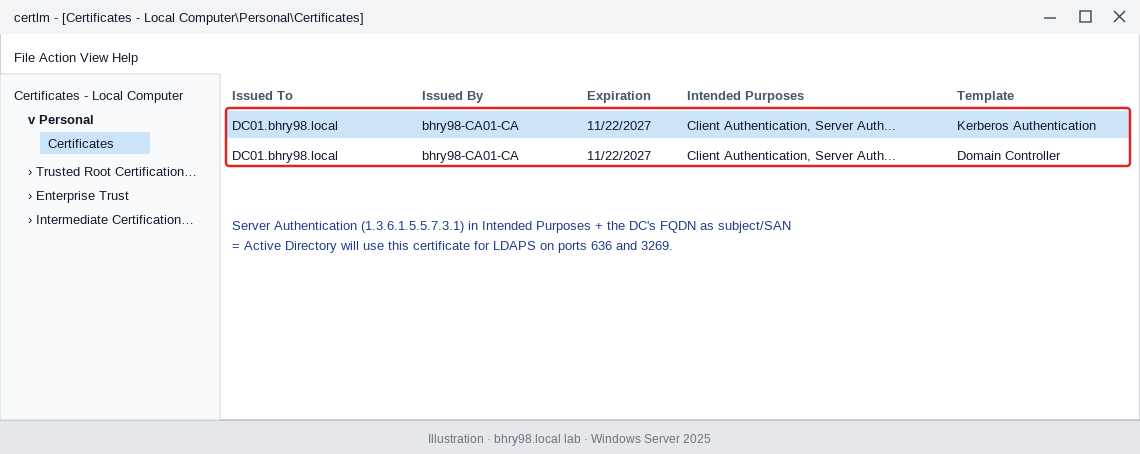
DC01 now holds certificates from bhry98-CA01-CA with Server Authentication in Intended Purposes.
What makes a certificate usable for LDAPS
- The DC's FQDN (
DC01.bhry98.local) in the Subject or Subject Alternative Name - Server Authentication (OID
1.3.6.1.5.5.7.3.1) in Enhanced Key Usage - A private key in the Local Computer store
- Issued by a CA the DC and the clients trust
Step 5: Make AD load the certificate
The DC picks up a valid certificate automatically, normally within minutes or after a reboot. To load it right now without a reboot, ask AD to refresh its server certificate:
@"
dn:
changetype: modify
add: renewServerCertificate
renewServerCertificate: 1
-
"@ | Set-Content -Encoding ascii $env:TEMP\ldaps-renew.ldf

ldifde -i -f $env:TEMP\ldaps-renew.ldf
Connecting to "DC01.bhry98.local"
Logging in as current user using SSPI
Importing directory from file "C:\Users\ADMINI~1\AppData\Local\Temp\ldaps-renew.ldf"
Loading entries..
1 entry modified successfully.
Step 6: Test LDAPS
From the domain controller or a Windows client
Check the port is listening:
Test-NetConnection dc01.bhry98.local -Port 636     # TcpTestSucceeded : True
Test-NetConnection dc01.bhry98.local -Port 3269    # Global Catalog over SSL
Then use ldp.exe (installed with the AD DS tools):
- Run
ldp.exe. - Connection → Connect…
- Server:
dc01.bhry98.local(the FQDN, not the IP, because it must match the certificate), Port:636, check SSL → OK. - Optional: Connection → Bind with a domain account to test a login.
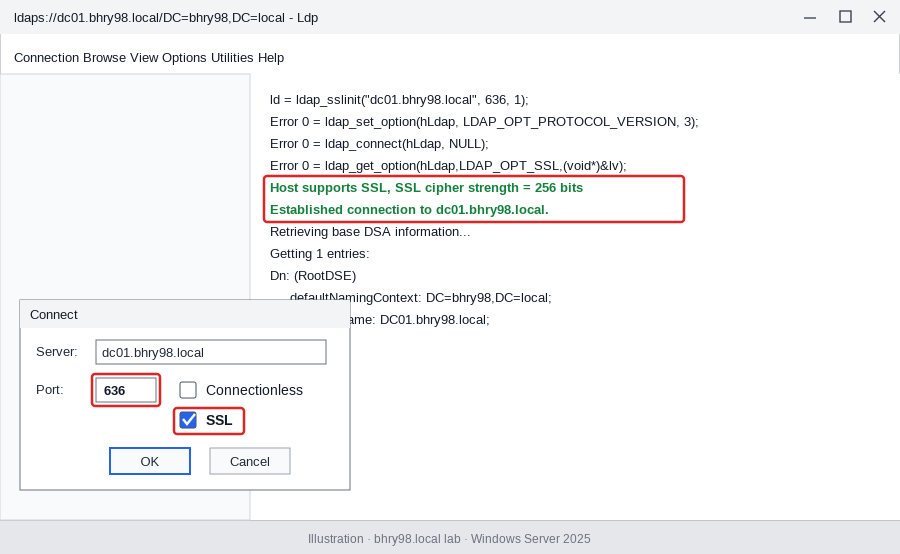
Success: Host supports SSL, SSL cipher strength = 256 bits and Established connection.
From Linux
First export the CA certificate (Step 7), then:
# See the certificate chain the DC presents
openssl s_client -connect dc01.bhry98.local:636 -CAfile bhry98-CA.pem -showcerts </dev/null \
  | grep -E "subject=|issuer=|Verify return code"
# Search the directory over LDAPS
LDAPTLS_CACERT=bhry98-CA.pem ldapsearch -H ldaps://dc01.bhry98.local:636 \
  -D "administrator@bhry98.local" -W \
  -b "dc=bhry98,dc=local" "(sAMAccountName=administrator)" cn memberOf
Done. bhry98.local answers LDAPS on 636 with a trusted,
auto-renewing certificate.
Step 7: Make clients trust your CA
Domain-joined Windows machines trust the Enterprise CA automatically (it is published in AD). Everything else needs the CA certificate.
Export it on CA01:
Copy bhry98-CA.cer to your clients, then:
# Keycloak 25+: add the PEM to the system truststore used by Keycloak
bin/kc.sh start --truststore-paths=/opt/keycloak/conf/truststores/bhry98-CA.pem ...
Then in User federation → Add LDAP provider:
| Field | Value |
|---|---|
| Vendor | Active Directory |
| Connection URL | ldaps://dc01.bhry98.local:636 |
| Bind DN | svc-keycloak@bhry98.local |
| Users DN | OU=Users,DC=bhry98,DC=local |
Click Test connection and Test authentication. See How to install Keycloak for the Keycloak setup itself.
Step 8: Harden it by turning off plain-text LDAP
LDAPS only helps if clients actually use it. Once your apps are switched to ldaps://:
-
Find who still uses insecure binds. On each DC, raise LDAP interface logging and watch Directory Service event 2889 (each client doing an unsigned or clear-text bind) and 2887 (daily summary):
-
Require LDAP signing (Windows Server 2025 already requires it by default on new deployments; on older or upgraded domains set it yourself). In the Default Domain Controllers Policy → Security Options:
- Domain controller: LDAP server signing requirements → Require signing
- Domain controller: LDAP server channel binding token requirements → When supported, then Always once 2889 events are gone
-
Firewall: allow
636and3269from the networks that need them; block389/3268from outside the server network if nothing legitimate uses them. -
Monitor certificate expiry. Auto-enrollment renews it, but alert on Directory Service event 1220 (LDAP over SSL will be unavailable…) and on certificates close to expiry.
Test before enforcing
Requiring signing or channel binding breaks old devices (printers, scanners, appliances, old Java apps) that use plain simple binds on 389. Use the 2889 events to find and fix them first.
Troubleshooting
ldp with SSL: Cannot open connection / error 0x51
No usable certificate on the DC. Re-check Step 4 (Server Authentication EKU, FQDN, private key),
run certutil -pulse, then Step 5. Look for event 1220 in the Directory Service log.
Works with the FQDN, fails with the IP address
Expected: the certificate is issued to DC01.bhry98.local, not to 10.0.0.10. Always use the
DNS name in connection URLs.
Linux / Java: unable to get local issuer certificate or PKIX path building failed
The client doesn't trust bhry98-CA01-CA. Import the CA certificate (Step 7) into the OS trust
store or the Java truststore your app actually uses.
No certificate appears after certutil -pulse
Check the GPO reached the DC (gpresult /r /scope computer), that the CA is online
(certutil -ping), and that the Domain Controllers group has Enroll and Autoenroll on
the template (Certificate Templates console certtmpl.msc → template → Security).
Two DCs, only one works
Each DC needs its own certificate. Run Steps 4 to 6 on every domain controller.
Next steps
- Understanding LDAP: Active Directory vs OpenLDAP
- How to install Keycloak and federate users from
bhry98.local - Microsoft: LDAP over SSL (LDAPS) certificate requirements