How to sync Active Directory users to Microsoft Entra ID
Before you start
New to Entra ID? Read What is Microsoft Entra ID and why do we use it? first.
Most companies already have their users in an on-premises Active Directory and now also need them in Microsoft Entra ID for Microsoft 365, Azure and SaaS apps. Creating every user twice by hand doesn't scale and ends with two passwords per person. The fix is to let AD stay the place where you manage people and have a sync tool copy them to Entra ID.
In this guide I use Microsoft Entra Connect Sync (the tool people still call "Azure AD Connect") with password hash sync, which is what I'd pick for most setups. At the end there is a section on the lighter Entra Cloud Sync agent and when to use it instead.
By the end of this guide you will have:
- Users from selected OUs in
bhry98.localshowing up in Entra ID - The same username and password working on-premises and in Microsoft 365
- A sync running every 30 minutes on its own
- A clear process for new users, changes and leavers
Lab used in this guide
| Host | IP | OS | Role |
|---|---|---|---|
DC01.bhry98.local |
10.0.0.10 |
Windows Server 2025 | Domain controller (AD DS + DNS) |
SYNC01.bhry98.local |
10.0.0.30 |
Windows Server 2025 | Domain member, will run Entra Connect Sync |
| Entra tenant | contoso.onmicrosoft.com with the custom domain contoso.com verified |
Replace contoso.com with your own public domain everywhere below. It's the same domain lab as
my LDAPS guide, so if you followed
that one you already have DC01.
How it works
flowchart LR
    subgraph onprem["On-premises"]
        DC["DC01<br/>AD DS"]
        S["SYNC01<br/>Entra Connect Sync"]
    end
    E["Microsoft Entra ID<br/>contoso.com"]
    DC -- "LDAP read<br/>(MSOL_ account)" --> S
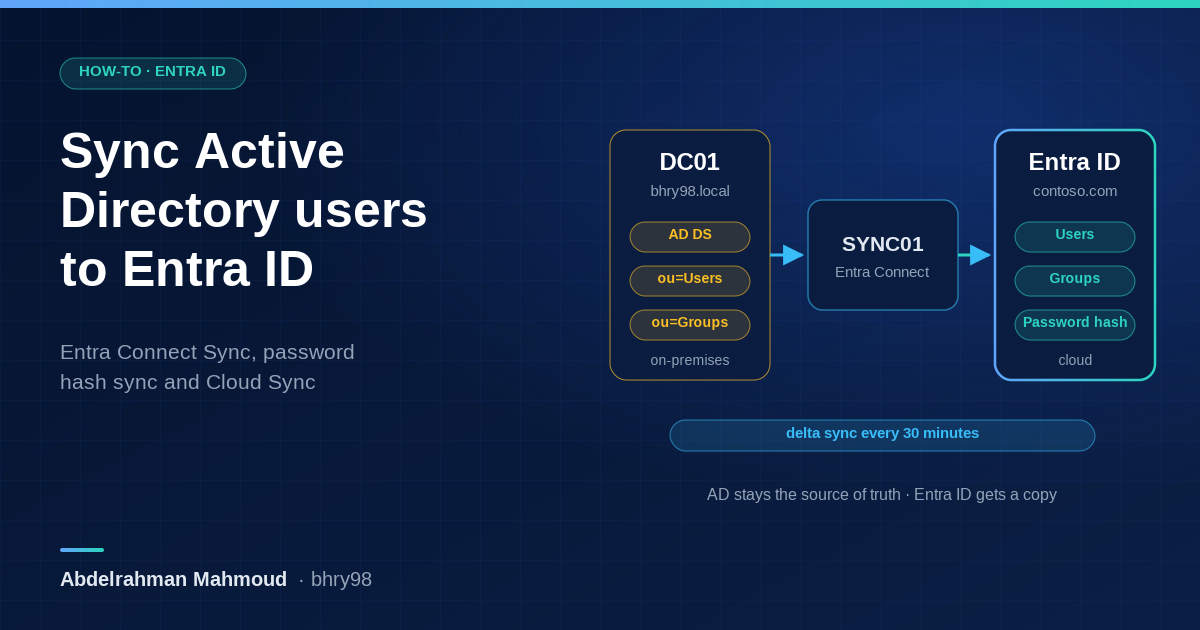
S -- "HTTPS 443<br/>outbound only" --> E- Entra Connect reads users, groups and contacts from AD, applies your filters, and writes them to Entra ID. Only outbound HTTPS, no inbound ports to open.
- AD is the source of authority. A synced user is edited in AD, not in the Entra portal. Most fields are greyed out in the cloud.
- With password hash sync, Entra ID gets a hash of the AD password hash (never the password itself), so users sign in to the cloud without the request touching your DCs.
- Every 30 minutes it runs a delta sync that only sends what changed.
Prerequisites
| Requirement | Notes |
|---|---|
| A working AD domain | bhry98.local, healthy (dcdiag /q shows nothing) |
| A Windows Server 2016 or newer, domain-joined | SYNC01. Not a domain controller (supported, but I'd avoid it) |
| An Entra tenant with your domain verified | Entra admin center → Entra ID → Domain names → Add custom domain, then add the TXT record it gives you |
| Entra account with the Hybrid Identity Administrator (or Global Administrator) role | Cloud-only account, admin@contoso.onmicrosoft.com, with MFA |
| AD account in Enterprise Admins | Only used during setup to create the sync service account |
| Outbound HTTPS 443 from SYNC01 | To the Microsoft endpoints; TLS 1.2 enabled |
| Fewer than about 100,000 objects | Otherwise use a full SQL Server instead of the built-in SQL Express LocalDB |
Clean up AD first
Whatever is in the OUs you pick will end up in the cloud. Duplicate mail or
proxyAddresses values, users with empty mail, and old test accounts cause errors later.
Microsoft's IdFix tool scans AD and lists these problems. Run it once before you start.
Step 1: Give users a routable UPN
Users sign in to Entra ID with their UPN. alice@bhry98.local can't be used in the cloud because
nobody can verify .local on the internet. If you sync as-is, users get
alice@contoso.onmicrosoft.com instead, which nobody wants to type.
Add contoso.com as a UPN suffix on DC01, then move the users to it:
# 1. Add the suffix to the forest
Get-ADForest | Set-ADForest -UPNSuffixes @{Add = "contoso.com"}

# 2. See who still has the old suffix
Get-ADUser -SearchBase "OU=Staff,DC=bhry98,DC=local" -Filter * |
    Where-Object UserPrincipalName -like "*@bhry98.local" |
    Select-Object SamAccountName, UserPrincipalName

# 3. Change them (test on one OU first)
Get-ADUser -SearchBase "OU=Staff,DC=bhry98,DC=local" -Filter * |
    Where-Object UserPrincipalName -like "*@bhry98.local" |
    ForEach-Object {
        $new = $_.UserPrincipalName -replace "@bhry98\.local$", "@contoso.com"
        Set-ADUser $_ -UserPrincipalName $new
    }
- Active Directory Domains and Trusts → right-click the root → Properties.
- Alternative UPN suffixes: add
contoso.com→ OK. - In Active Directory Users and Computers, open a user → Account tab → pick
@contoso.comin the drop-down next to the logon name.
Users can still log in to Windows as BHRY98\alice as before. Only the UPN changes.
Make UPN and email match
Life is easier when alice@contoso.com is both the UPN and the email address. Fill the mail
attribute too, because Exchange Online and many apps read it.
Step 2: Decide which OUs to sync
Don't sync the whole domain. Service accounts, disabled users and the built-in Users container
don't belong in the cloud. In this lab I sync two OUs:
DC=bhry98,DC=local
├── OU=Staff          ← sync
├── OU=Groups         ← sync
├── OU=ServiceAccounts
└── CN=Users          (built-in, not synced)
You choose these OUs in the wizard in Step 4, and you can change them later.
Step 3: Download and install on SYNC01
Sign in to SYNC01 as a domain admin.
- In the Microsoft Entra admin center (
entra.microsoft.com), go to Entra ID → Entra Connect → Connect Sync and download the latest installer. Microsoft moved the download there; older links to the Download Center point at outdated versions. - Run
MicrosoftEntraConnectSyncSetup.msi(the exact file name changes between releases). - Accept the licence terms → Continue.
Step 4: Run the wizard with custom settings
Express settings syncs the entire forest with password hash sync. It works, but I prefer Customize so I can choose the OUs.
- Install required components: leave the defaults (built-in SQL Express LocalDB, auto-created service account) → Install.
- User sign-in: select Password Hash Synchronization and tick Enable single sign-on (Seamless SSO, so domain-joined PCs on the network don't ask for a password again).
- Connect to Microsoft Entra ID: sign in with
admin@contoso.onmicrosoft.comand approve MFA. - Connect your directories: forest
bhry98.local→ Add Directory → Create new AD account, enterBHRY98\Administrator(Enterprise Admin). The wizard creates a low-privilege account namedMSOL_xxxxxxxxthat it uses from now on. - Microsoft Entra sign-in configuration: you should see
contoso.comas Verified andbhry98.localas Not Added. Keep USER PRINCIPAL NAME as the attribute. Since all users are already on@contoso.comfrom Step 1, tick Continue without matching all UPN suffixes to verified domains. - Domain and OU filtering: choose Sync selected domains and OUs and tick only
StaffandGroups. - Uniquely identifying your users: keep the defaults. Users are matched by UPN and the source
anchor is
ms-DS-ConsistencyGuid. Don't change this unless you know why. - Filter users and devices: Synchronize all users and devices.
- Optional features: leave Password hash synchronization ticked. If you have Entra ID P1, also tick Password writeback so users can reset their AD password from the cloud.
- Enable single sign-on: enter domain admin credentials when asked. This creates a computer
account called
AZUREADSSOACCin AD. - Ready to configure: tick Start the synchronization process when configuration completes → Install.
The first full sync starts right away. On a small domain it takes a few minutes.
Staging mode
The same screen has Enable staging mode. A server in staging mode imports and calculates everything but doesn't write to Entra ID. Install a second server like that and you have a ready standby if SYNC01 dies.
Step 5: Check that users arrived
Entra ID → Users → All users. Add the column On-premises sync enabled. Your AD users show Yes, cloud-only admins show No.
Entra ID → Entra Connect → Connect Sync shows the last sync time and whether password hash sync is healthy.
Install-Module Microsoft.Graph -Scope CurrentUser
Connect-MgGraph -Scopes "User.Read.All","Organization.Read.All"

# When did the tenant last sync?
Get-MgOrganization | Select-Object OnPremisesSyncEnabled, OnPremisesLastSyncDateTime

# Is this user coming from AD?
Get-MgUser -UserId alice@contoso.com `
    -Property DisplayName,UserPrincipalName,OnPremisesSyncEnabled,OnPremisesSamAccountName |
    Select-Object DisplayName, UserPrincipalName, OnPremisesSyncEnabled, OnPremisesSamAccountName
Then do the real test: open https://myapps.microsoft.com in a private browser window and sign
in as alice@contoso.com with her AD password.
Step 6: Run and monitor sync from PowerShell
Everything below runs on SYNC01 in an elevated PowerShell (the ADSync module is installed
with Entra Connect).
# Status of the scheduler: is it on, when is the next run?
Get-ADSyncScheduler

# Push changes now instead of waiting up to 30 minutes
Start-ADSyncSyncCycle -PolicyType Delta

# After changing filters or rules: full sync
Start-ADSyncSyncCycle -PolicyType Initial

# Pause the scheduler during maintenance, then turn it back on
Set-ADSyncScheduler -SyncCycleEnabled $false
Set-ADSyncScheduler -SyncCycleEnabled $true
For errors on single objects, open Synchronization Service Manager (installed with Entra
Connect). The Operations tab lists every run; click a run with warnings to see which user
failed and why. The usual suspect is a duplicate proxyAddresses or UPN.
Managing users day to day
Once sync is on, the rule is simple: change users in AD, never in the cloud. Here is what each common task looks like.
| Task | Do this in AD | What happens in Entra ID |
|---|---|---|
| New employee | Create the user in OU=Staff with a @contoso.com UPN |
Appears after the next sync. Assign the Microsoft 365 licence (or use group-based licensing) |
| Name, title, department, manager | Edit the user in AD | Updated on the next sync |
| Password change | User changes it with Ctrl+Alt+Del or you reset it in AD | Synced within about 2 minutes (password sync runs on its own schedule) |
| Add to a group | Add to a group inside OU=Groups |
Group membership updated in Entra ID |
| Employee leaves | Disable the account in AD | Sign-in blocked after the next sync. Revoke sessions in Entra to cut access right away |
| Delete | Delete in AD (or move out of synced OUs) | User goes to Deleted users in Entra ID and is kept 30 days, then removed for good |
Moving a user out of a synced OU deletes them in the cloud
To Entra ID, a user that leaves the sync scope looks exactly like a deleted user. Their mailbox and OneDrive go with them after 30 days. Move users between synced OUs only, or restore them from Deleted users if it happens by mistake.
Entra Connect also has an accidental delete guard: if one sync run would delete more than 500 objects it stops and waits for you. Don't turn that off.
What can still be done in the cloud
Some things are not part of sync and are managed in Entra ID even for synced users:
- Licence assignment, MFA methods and Conditional Access policies.
- Cloud-only groups (Microsoft 365 groups, Teams).
- Guest users and cloud-only admin accounts.
Keep admin accounts cloud-only
Use a separate cloud-only account (admin@contoso.onmicrosoft.com) for Global Administrator
and similar roles, not a synced AD account. If AD is ever compromised, the attacker doesn't get
your tenant too.
Users that already exist in both places
If someone created alice@contoso.com by hand in Entra ID before you set up sync, Entra Connect
tries to link it to the AD user with the same UPN or primary SMTP address. This is called a
soft match. After the match, the cloud account becomes a synced account and AD wins from then
on.
Soft match is blocked for accounts that hold admin roles, on purpose. Remove the role, let it sync, then add the role back (or better, keep admins cloud-only as above).
Entra Cloud Sync instead of Connect Sync
Microsoft also offers Microsoft Entra Cloud Sync. Instead of a full sync server with its own database, you install a small provisioning agent on one or more domain-joined servers, and the sync configuration lives in the Entra admin center.
| Entra Connect Sync | Entra Cloud Sync | |
|---|---|---|
| What you install | Full sync engine with SQL LocalDB | Lightweight agent, install 2 or 3 for high availability |
| Where you configure it | Wizard on the server | Entra admin center |
| Sync interval | 30 minutes | About every 2 minutes |
| Several disconnected AD forests | Hard | Easy |
| Device sync (hybrid join), complex custom rules, very large directories | Yes | Limited |
My rule of thumb: for a new, simple setup (one forest, users and groups, password hash sync) try Cloud Sync first because there is less to maintain. If you need hybrid-joined devices, custom sync rules, or another feature Cloud Sync doesn't cover yet, use Connect Sync. The two can run side by side on different OUs during a migration. Check Microsoft's current comparison page before deciding, because Cloud Sync gains features often.
The Cloud Sync setup in short:
- Entra admin center → Entra ID → Entra Connect → Cloud sync → Agents → download the agent.
- Install it on SYNC01 (and later a second server) and sign in as Hybrid Identity Administrator.
- Back in the portal: New configuration → AD to Microsoft Entra ID sync → pick
bhry98.local. - Scoping filters: select the
StaffandGroupsOUs. Turn on Password hash sync. - Enable the configuration and use Provision on demand to test one user first.
Troubleshooting
| Problem | Likely cause and fix |
|---|---|
Users show up as @contoso.onmicrosoft.com |
Their UPN suffix isn't a verified domain. Fix the UPN in AD (Step 1) and sync again |
AttributeValueMustBeUnique error |
Two objects have the same proxyAddresses or UPN. Find it with Get-ADUser -Filter "proxyAddresses -eq 'smtp:alice@contoso.com'" and fix the duplicate |
| User is in AD but not in Entra ID | Not in a synced OU, or filtered out. Check Synchronization Service Manager → Metaverse search |
| Password works on-premises but not in the cloud | Password hash sync off or failing. Check the Connect Sync health page and run Start-ADSyncSyncCycle -PolicyType Delta |
| "This operation can't be performed because the object is synced" in the portal | Expected. Edit that field in AD instead |
| Sync stopped with too many deletes | The accidental delete guard kicked in. Check what is being deleted before you allow it |
Summary
- AD stays the place where you create, change and disable users. Entra ID gets a copy.
- Give users a routable UPN (
@contoso.com) before the first sync. - Sync only the OUs you need, with password hash sync for sign-in.
Start-ADSyncSyncCycle -PolicyType Deltapushes changes right away; otherwise they go every 30 minutes.- Disable leavers in AD, keep admin accounts cloud-only, and be careful moving users between OUs.